Activity 24: POSTMAN
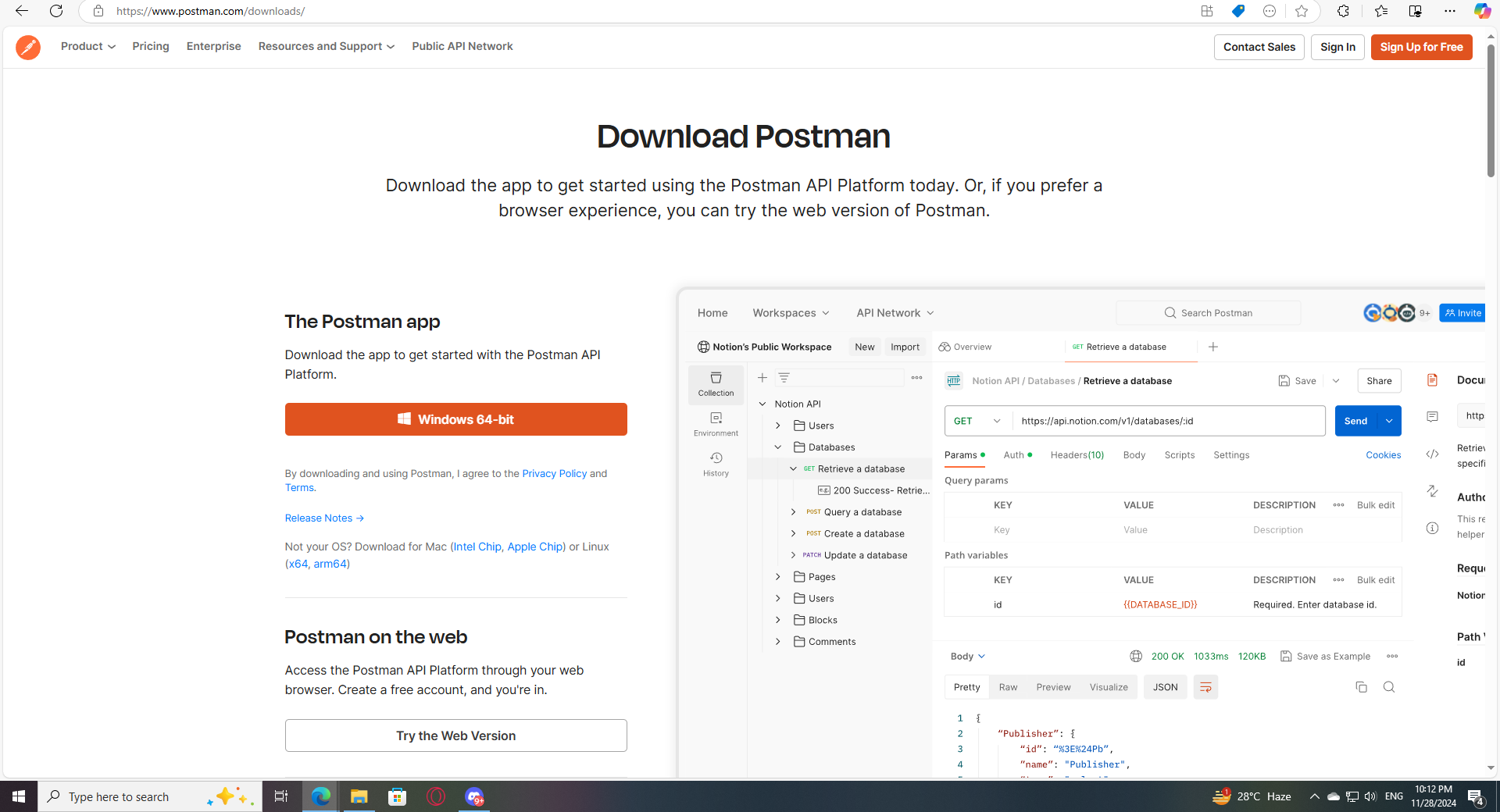
Step 1: Go to https://www.postman.com/downloads/
Press the Windows 64-bit button to download
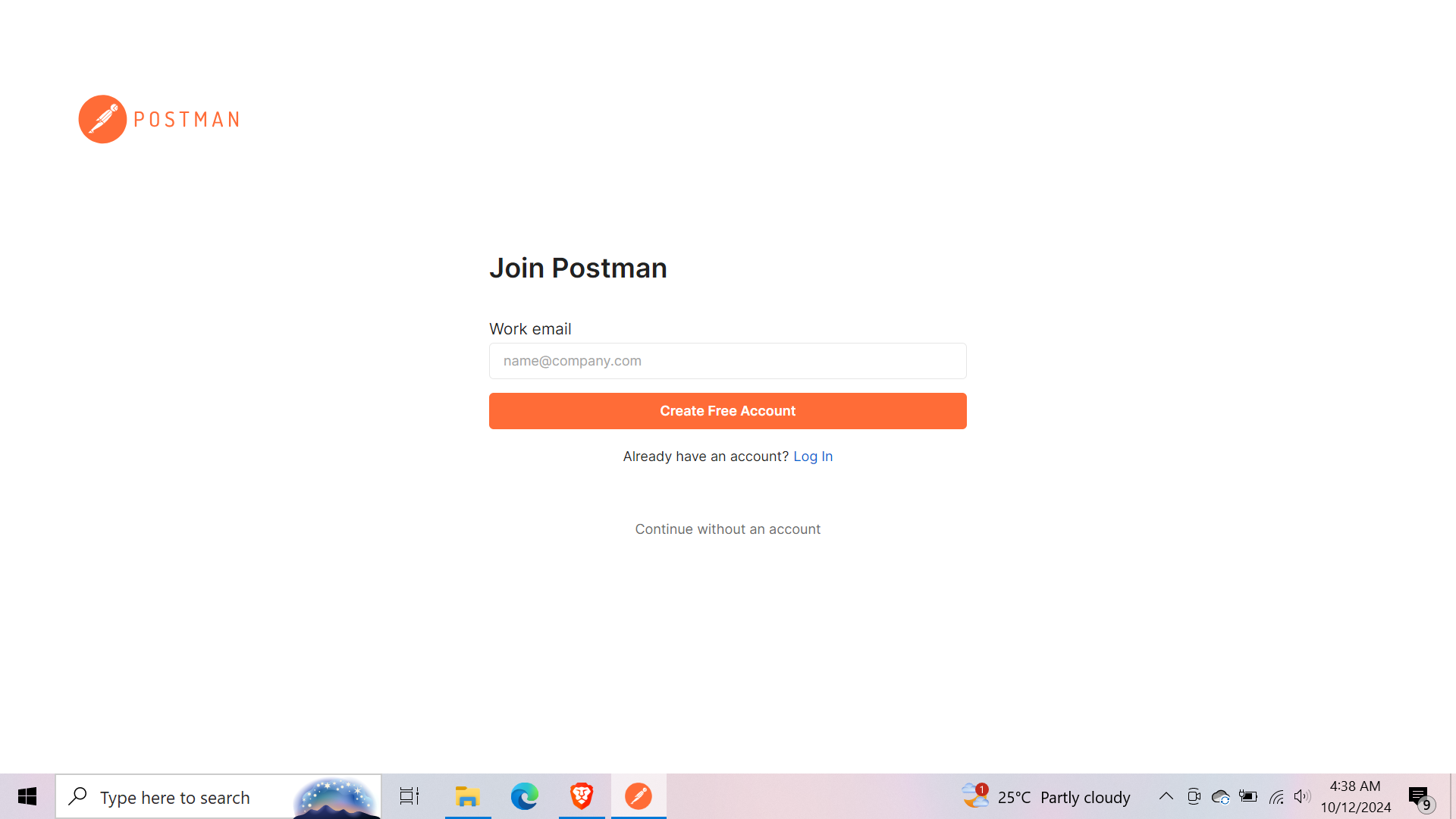
Step 2: Create an account
Create an account to sign in and setup your role
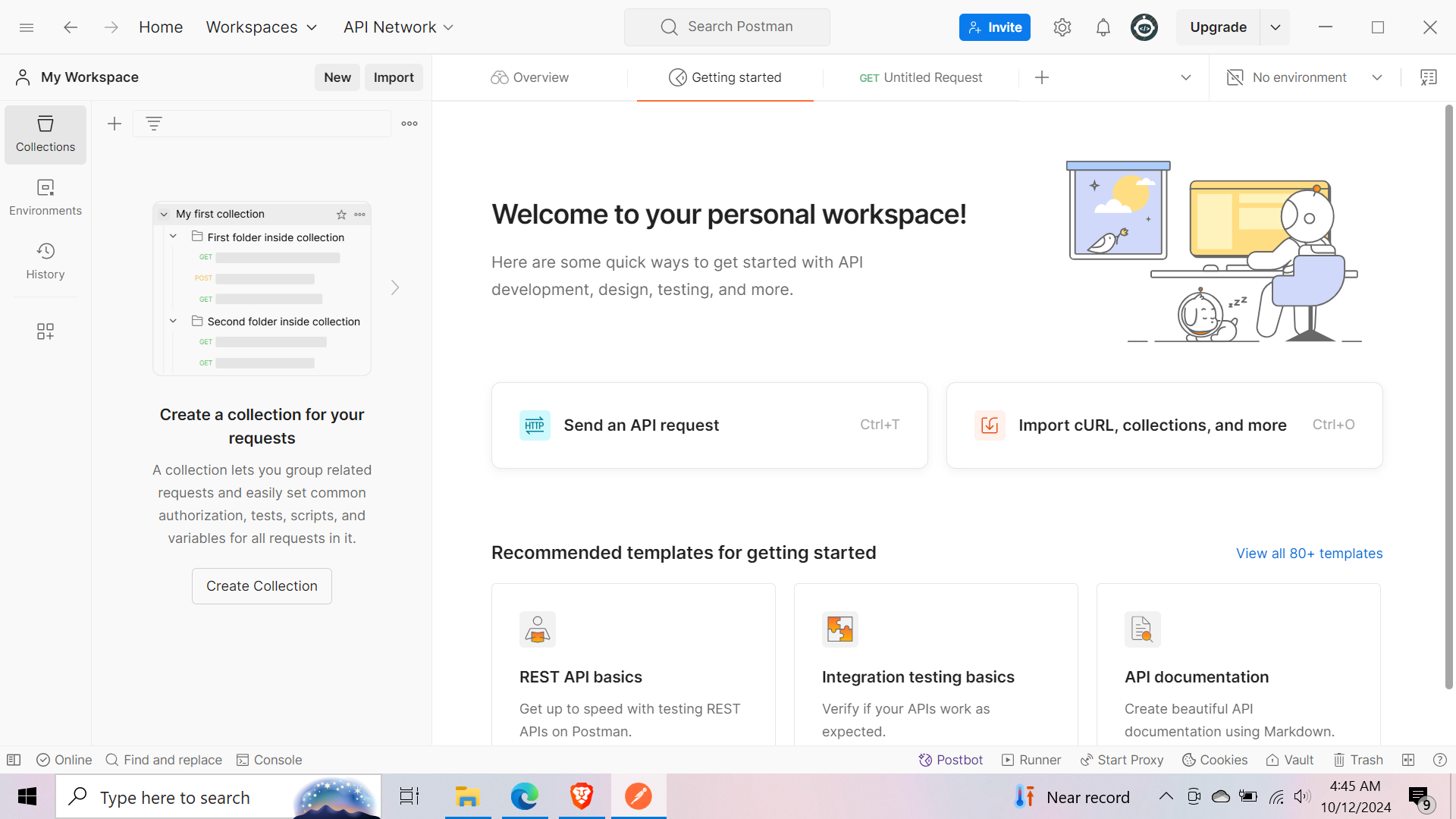
After you’re all done, this will be your GUI
Understanding HTTP Methods in Postman: PUT, GET, DELETE, POST
Using Postman to interact with APIs can be straightforward once you understand the basic HTTP methods:GET,POST,PUT, andDELETE. Here’s a simple guide to help you grasp these concepts easily.
1. GET Method
Purpose: Retrieve data from a server.
How to Use:
Open Postman.
Select GET from the dropdown menu.
Enter the URL of the API endpoint (e.g.,
http://example.com/api/users).Click Send to see the response.
2. POST Method
Purpose: Create a new resource on the server.
How to Use:
Select POST from the dropdown.
Enter the API endpoint URL (e.g.,
http://example.com/api/users).Go to the Body tab and select raw. Choose JSON from the dropdown.
Enter your data in JSON format, like this:
  json{
    "name": "John Doe",
    "job": "Developer"
  }
- Click Send. You should receive a response indicating that the user was created successfully.
3. PUT Method
Purpose: Update an existing resource completely.
How to Use:
Select PUT from the dropdown.
Enter the URL of the resource you want to update (e.g.,
http://example.com/api/users/1).In the Body, enter the complete updated object:
  json{
    "name": "John Doe",
    "job": "Senior Developer"
  }
- Click Send. The server will respond with a confirmation that the resource has been updated.
4. DELETE Method
Purpose: Remove a resource from the server.
How to Use:
Select DELETE from the dropdown.
Enter the URL of the resource you want to delete (e.g.,
http://example.com/api/users/1).Click Send. The server will respond with a status code (like
204 No Content) indicating that the deletion was successful.
Tips for Using Postman
Always check the API documentation for specific endpoints and required fields.
Use JSON format for sending data in POST and PUT requests.
The response codes (like
200 OK,204 No Content) help you understand if your request was successful.